Scenario Modeling
User Guide

Complete guide to what-if rate analysis, CAS 410 base evaluation, and indirect rate optimization in the ICP Dashboard

10
Chapters
6
Analysis Tools
3
Base Types
CAS 410
Compliant
Table of Contents
What’s Inside This Guide
  1. 01 Introduction to Scenario Modeling — What it is, why it matters, key capabilities
  2. 02 Getting Started — Creating your first scenario, list management
  3. 03 The Scenario Editor — Rate Overview — Editing pools, bases, and reading deltas
  4. 04 CAS 410 Base Analysis — TCI, Value Added, Single Element base types
  5. 05 Target Rate Calculator — Reverse-solving for pool or base amounts
  6. 06 Impact Analysis — Simulating cost reclassifications between pools
  7. 07 Base Change Justification Analysis — CAS 410-50(d) regression, rate impact, sensitivity
  8. 08 Comparing Scenarios Side-by-Side — Baseline vs. up to 3 scenario comparison
  9. 09 Reports & Export — Printable reports and Excel workbook export
  10. 10 Tips, Best Practices & FAR/CAS Reference — Common pitfalls and regulatory quick reference
Chapter 01
Introduction to Scenario Modeling
Model different indirect rate structures without affecting your actual ICP data. Evaluate alternatives, optimize your cost structure, and prepare for DCAA negotiations.

The Scenario Modeling module lets you create “what-if” copies of your indirect rate structure and explore changes safely. Every adjustment is sandboxed — your actual incurred cost data in the Prepare Proposal wizard and generated schedules remain untouched until you decide to act.

Use scenario modeling to answer questions like: “What happens to our OH rate if we reclassify $50K from overhead to G&A?” or “Should we switch our G&A base from TCI to Value Added under CAS 410?”

Prerequisite
Schedules must be generated first via the Prepare Proposal wizard (Step 7: Generate Schedules) before you can create scenarios. The scenario baseline is cloned from your current Schedule A rates.

Six Key Capabilities

Rate Adjustment

Edit pool amounts and allocation bases directly. Rates recalculate instantly with color-coded delta indicators.

CAS 410 Base Analysis

Compare TCI, Value Added, and Single Element G&A bases side-by-side with formula breakdowns and compliance guidance.

🎯

Target Rate Calculator

Reverse-solve: given a desired rate, find the pool or base amount needed to achieve it.

Impact Analysis

Simulate moving costs between pools and see cascading effects on all rates, including G&A base adjustments.

Base Change Justification

Four statistical methods (regression, rate impact, sensitivity, outlier) to justify CAS 410-50(d) base changes.

📋

Scenario Comparison

Compare up to 3 scenarios against your baseline in a side-by-side rate table with delta highlighting.

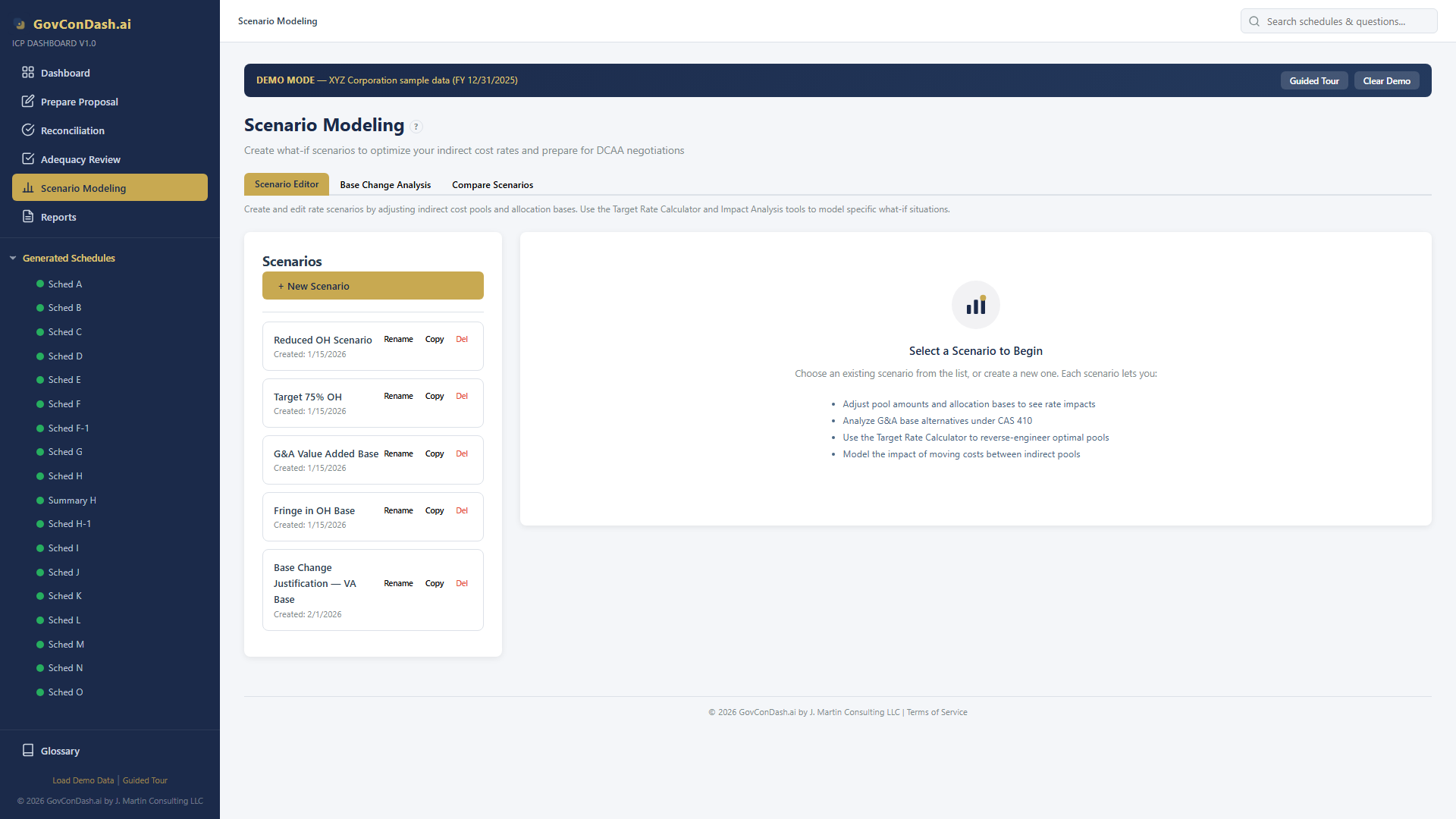
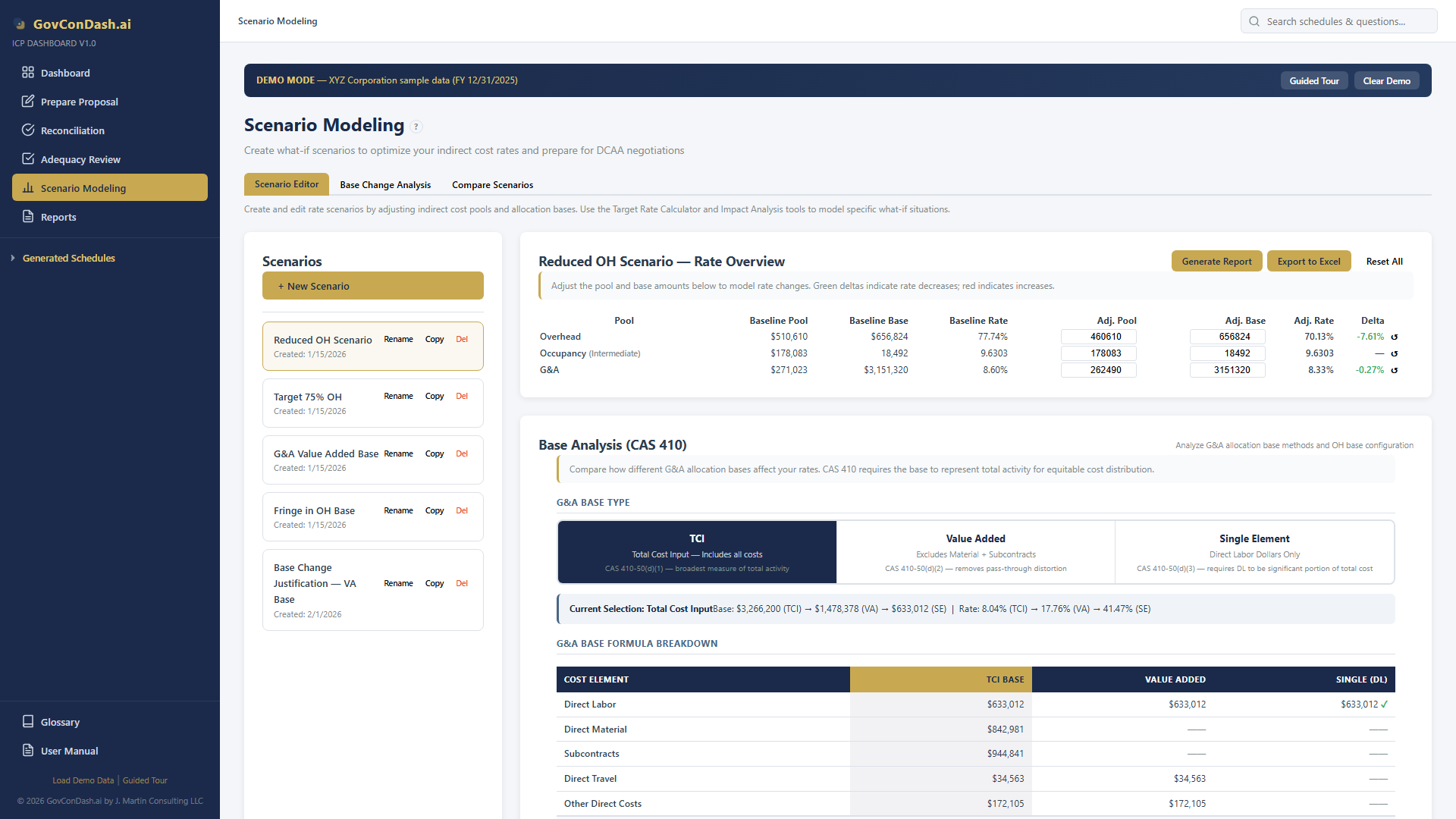
Scenario Modeling interface

The Scenario Modeling interface showing pre-built demo scenarios

Chapter 02
Getting Started — Creating Your First Scenario
Navigate to Scenario Modeling, understand the welcome state, and create your first what-if scenario.

Navigating to Scenario Modeling

Click the Scenario Modeling button in the left sidebar. It’s located below the Adequacy Review section with a bar-chart icon.

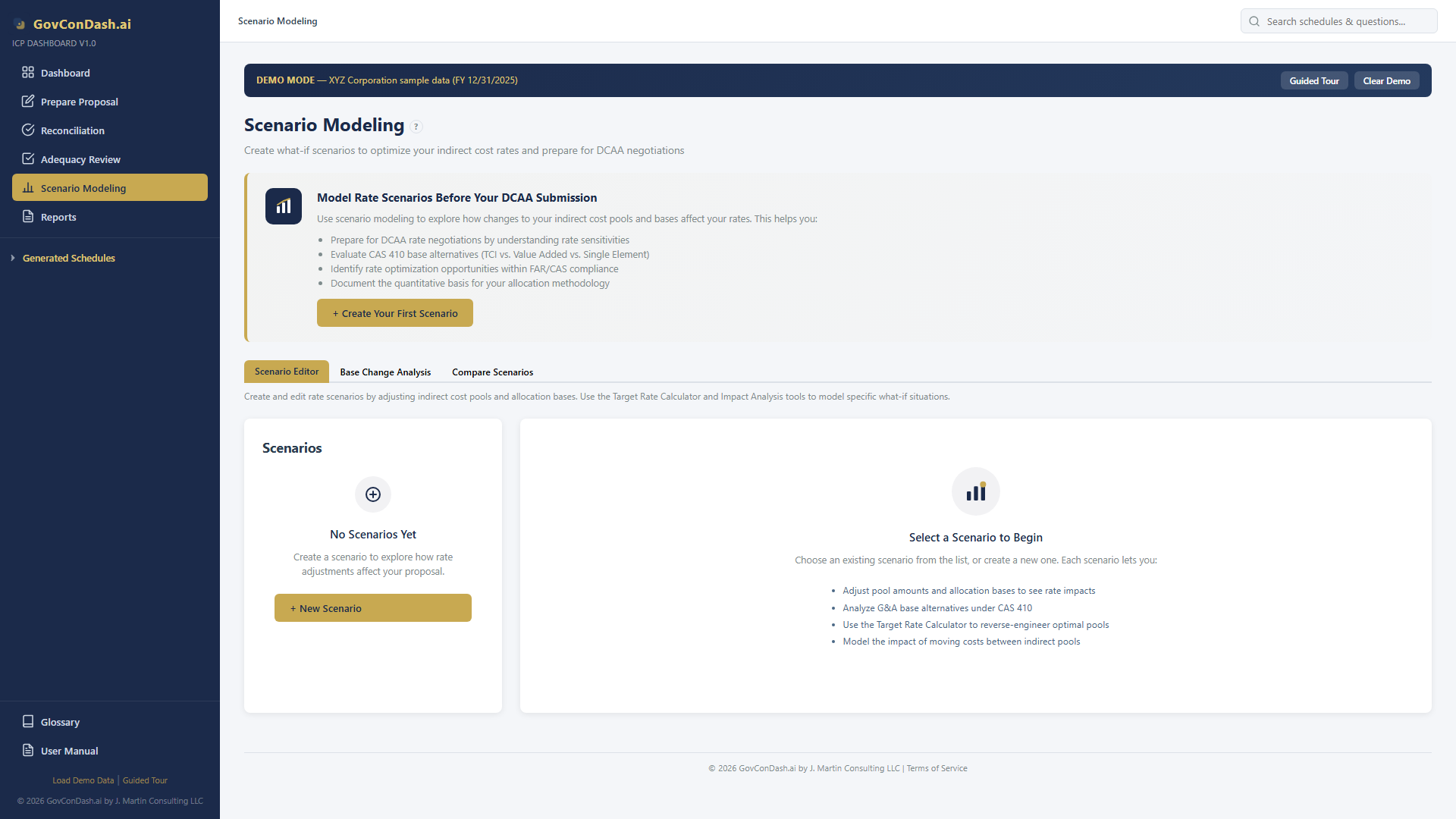
The Welcome State

If you have no scenarios yet, you’ll see a welcome card explaining the benefits of scenario modeling. If your schedules are generated, a “Create Your First Scenario” button appears. If not, you’ll see a note to generate schedules first.

Welcome state

Welcome state before any scenarios are created

Creating a Scenario

  1. Click “+ Create Your First Scenario” (or “+ New Scenario” if scenarios already exist)
  2. Enter a descriptive name in the prompt dialog (e.g., “Reduced OH Scenario” or “Value Added Base Test”)
  3. The system automatically clones your current baseline rates from Schedule A, captures cost breakdowns from Summary H and Schedule E, and initializes the scenario
  4. Your new scenario appears in the list panel on the left, auto-selected and ready to edit

Managing Your Scenario List

Each scenario card in the list panel shows the scenario name, creation date, and three action buttons:

Tip
Create multiple scenarios with different strategies (e.g., one for cost reclassification, one for base type change) so you can compare them side-by-side later in the Compare tab.
Chapter 03
The Scenario Editor — Rate Overview
Edit pool amounts and allocation bases directly. Rates recalculate instantly with color-coded deltas.

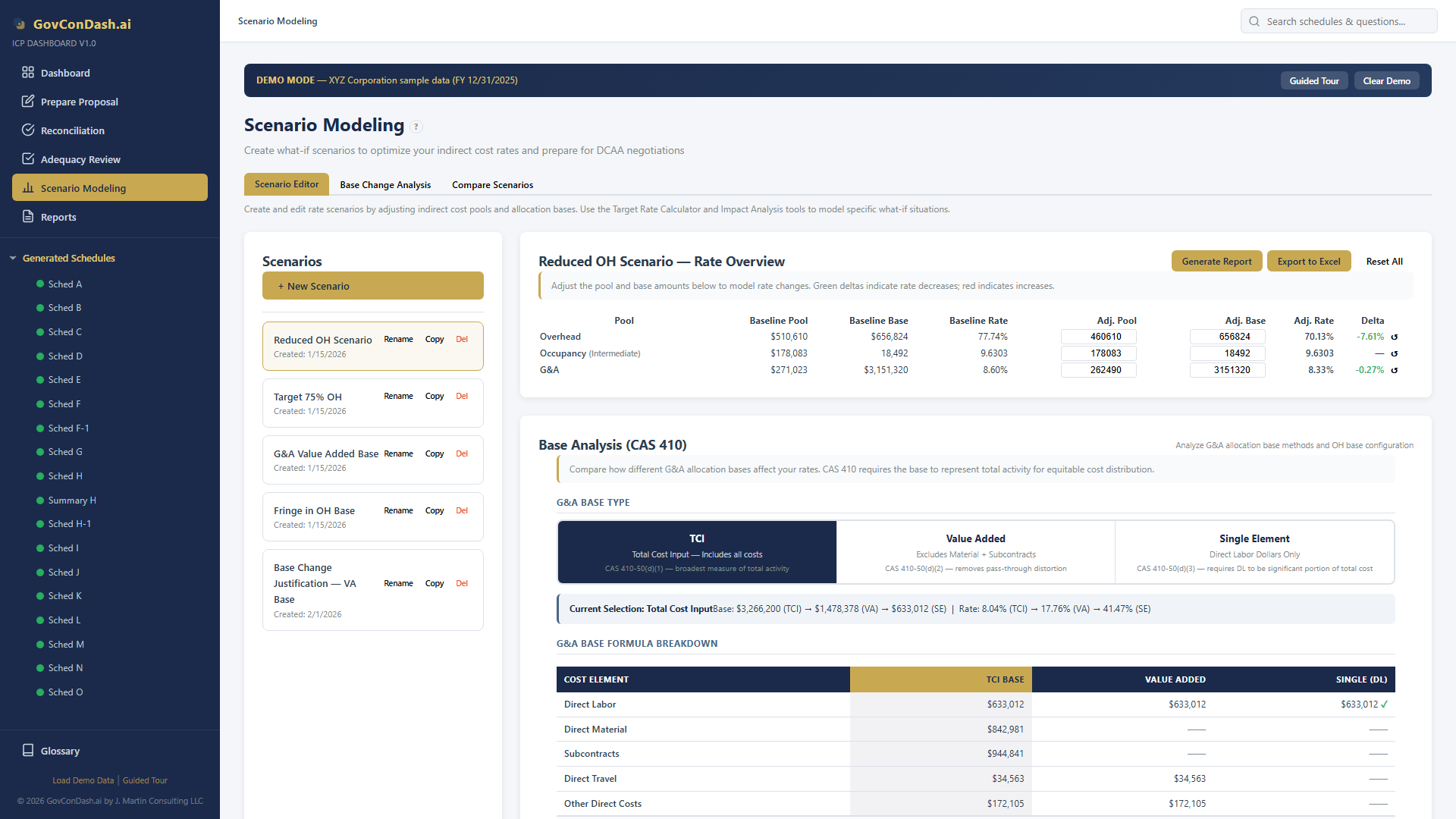
When you select a scenario, the right panel displays the Rate Overview card. This is your primary workspace for adjusting indirect rates.

Understanding the Rate Table

The table has these columns:

Column Description
PoolName of the indirect cost pool (e.g., General Overhead, G&A)
Baseline Pool $Original pool amount from your generated Schedule A (read-only)
Baseline Base $Original allocation base amount (read-only)
Baseline RateOriginal rate = Pool / Base (read-only)
Adj. Pool $Editable — type a new pool amount to model changes
Adj. Base $Editable — type a new base amount to model changes
Adj. RateAuto-computed from adjusted pool / adjusted base (4 decimal places)
DeltaDifference between adjusted and baseline rates, color-coded
ResetCircular arrow icon to restore that pool to its baseline values
Scenario Editor

The scenario editor with Rate Overview table showing baseline and adjusted columns

How to Edit

Click on any Adj. Pool or Adj. Base input field and type a new dollar amount. The rate recalculates instantly.

Rate = Pool Amount ÷ Base Amount   (4 decimal places)

Reading Delta Indicators

Deltas are color-coded to quickly identify favorable vs. unfavorable changes:

Delta highlighting

Rate deltas highlighted after pool adjustment — green for decreases, red for increases

Reset Options

Header Action Buttons

Three buttons appear in the Rate Overview header: Generate Report (printable analysis), Export to Excel (multi-sheet workbook), and Reset All (restore baseline).

Chapter 04
CAS 410 Base Analysis
Evaluate three G&A allocation base types under Cost Accounting Standard 410 with formula breakdowns and regulatory guidance.

CAS 410 (Allocation of Business Unit General and Administrative Expenses to Final Cost Objectives) governs how you select and apply your G&A allocation base. The choice of base type directly impacts which contracts bear more or less G&A expense. The Base Analysis card in the scenario editor lets you model all three options.

Three Allocation Base Types

CAS 410-50(d)(1)

TCI (Total Cost Input)

Includes all direct costs + fringe + overhead + intermediate. The broadest measure of total activity and the default safe choice for most contractors.

CAS 410-50(d)(2)

Value Added

Excludes direct material and subcontracts from the base. Use when pass-through costs distort G&A allocation across contracts with varying material/sub levels.

CAS 410-50(d)(3)

Single Element (DL)

Uses direct labor dollars only. Must demonstrate that labor is a significant portion of total costs. Requires strong justification.

How to Select a Base Type

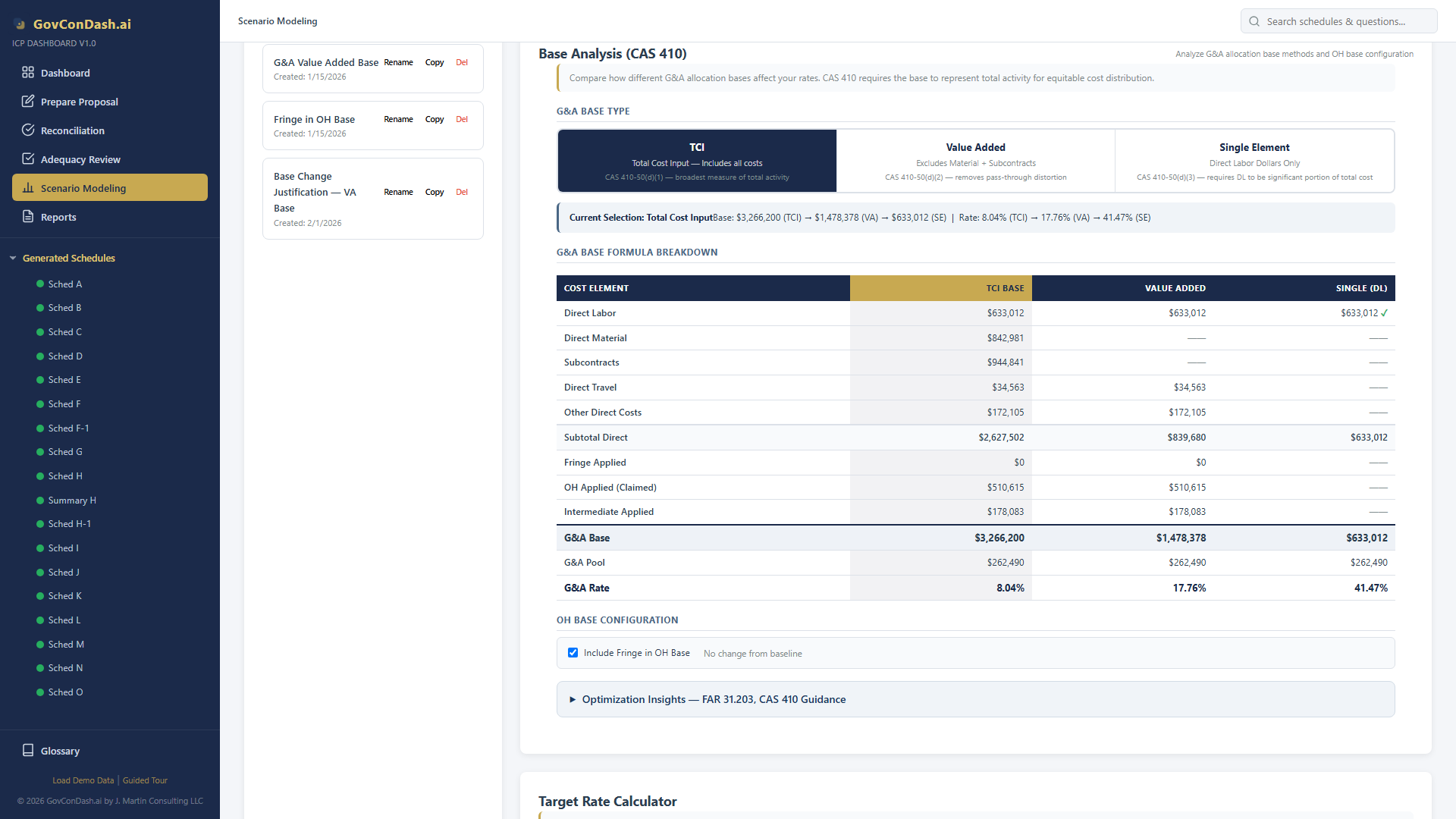
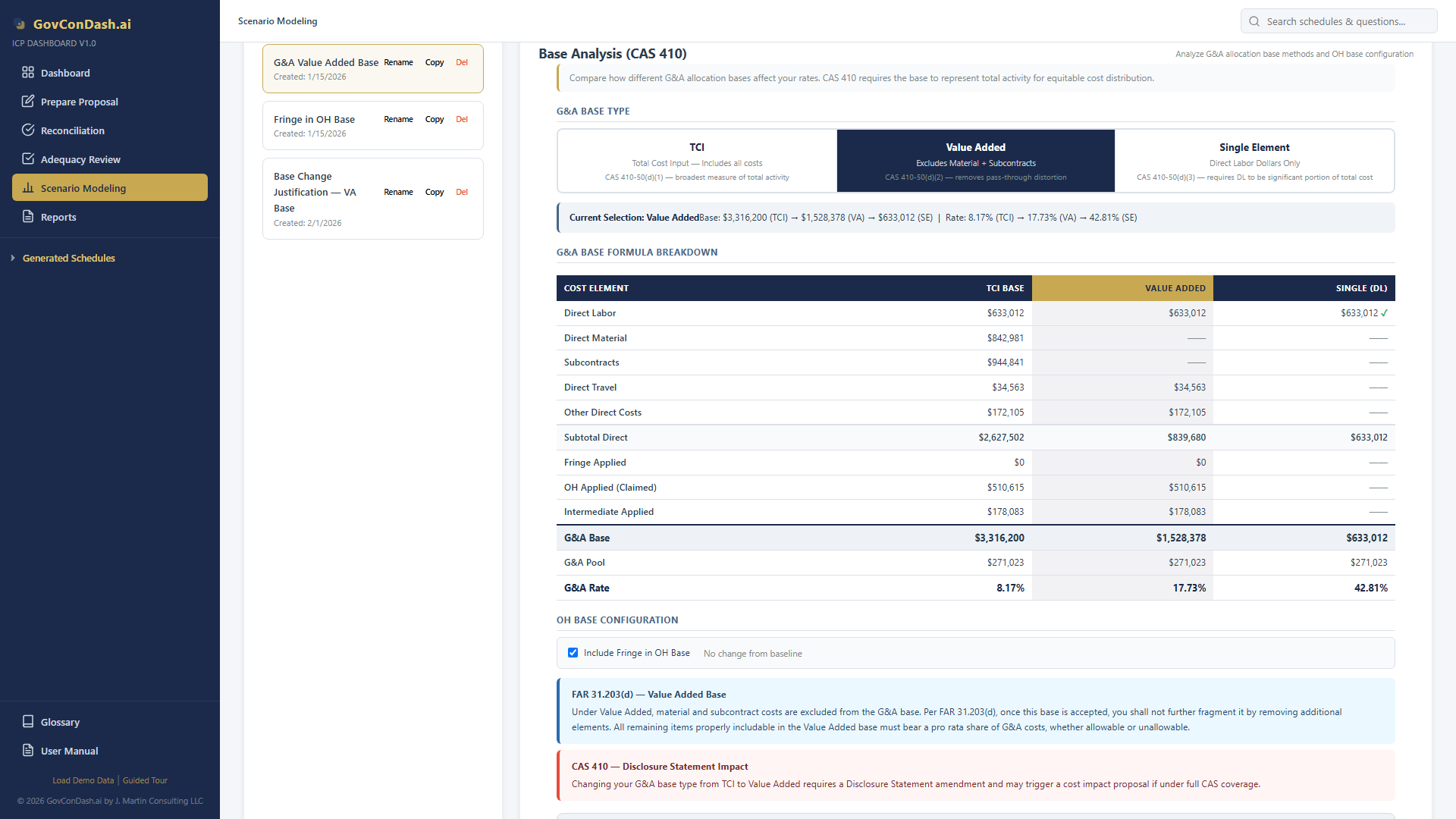
Scroll down from the Rate Overview to the Base Analysis (CAS 410) card. Click one of the three base type option cards. The selected card highlights with a gold border, and all rates recalculate using the new base.

Base Analysis

CAS 410 base analysis showing three base type options and formula breakdown

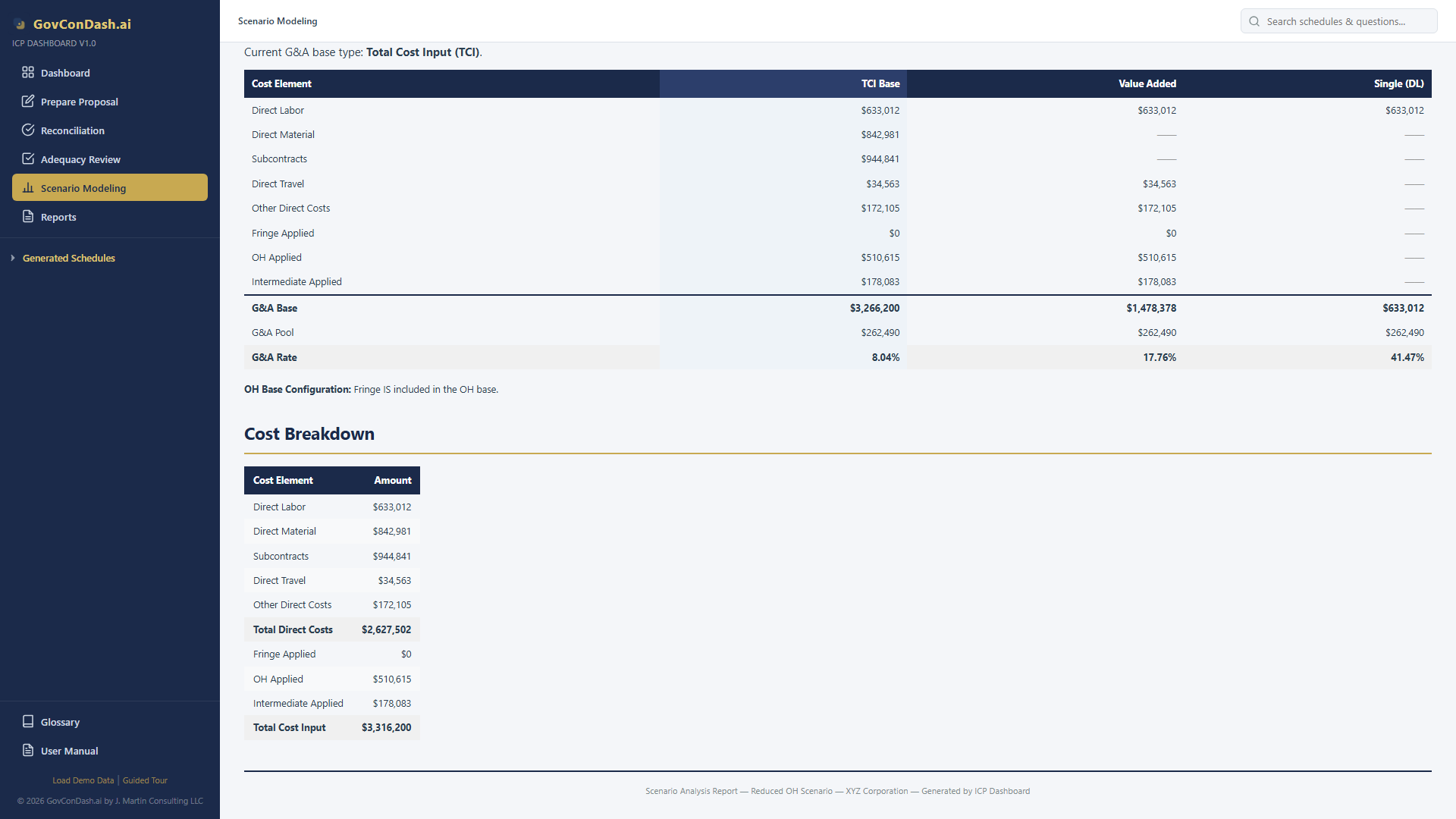
Formula Breakdown Table

Below the base type cards, a detailed table shows which cost elements are included or excluded under each method. The currently selected base type column is highlighted. Excluded items show an em-dash (—). The bottom rows show the resulting G&A base, G&A pool, and G&A rate under each option.

Base type selection

Value Added base type selected with formula breakdown across all three methods

OH Base Configuration

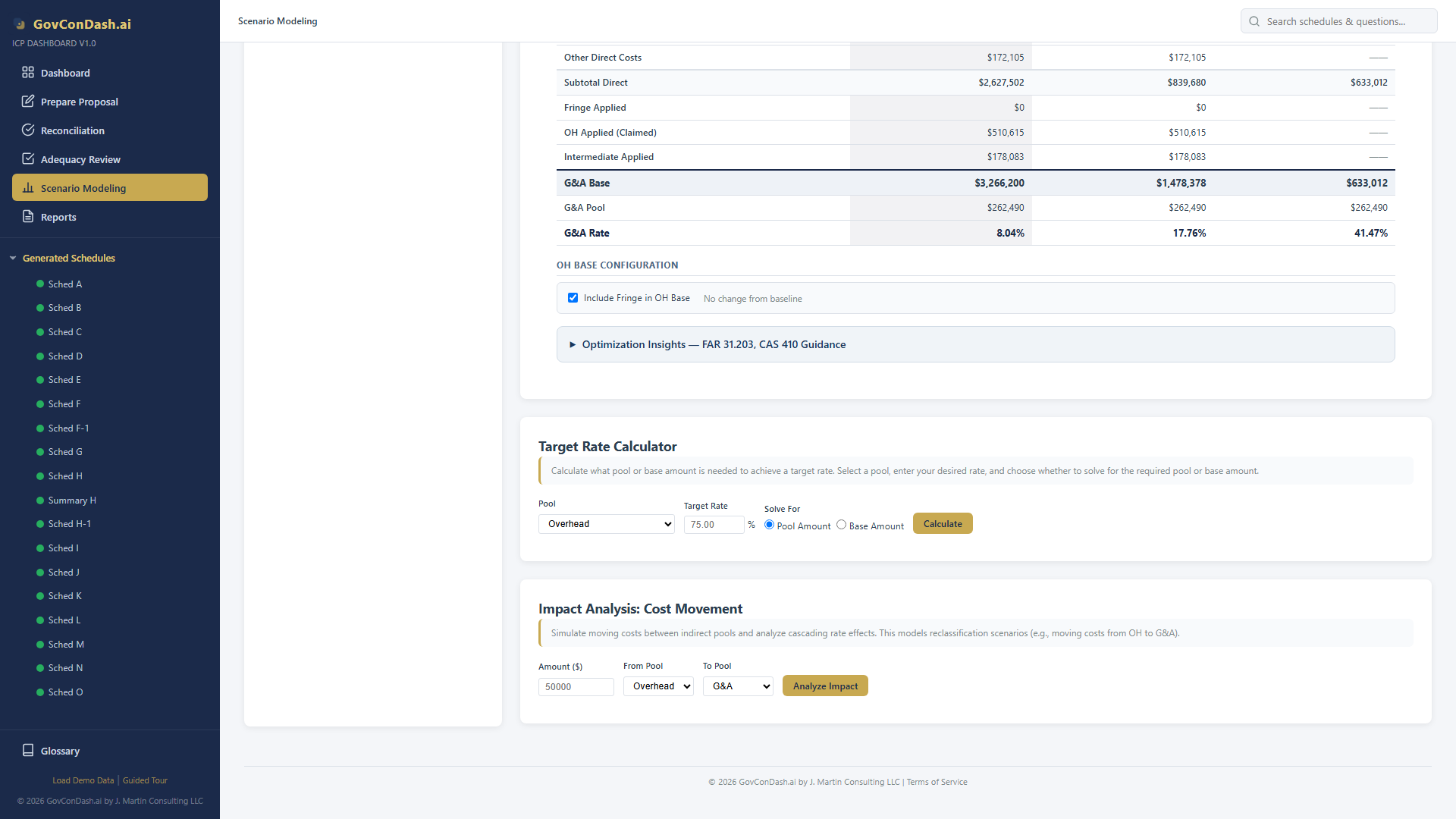
The “Include Fringe in OH Base” checkbox controls whether fringe benefit costs are added to the overhead pool’s allocation base. When toggled, the OH base and rate recalculate immediately. An impact label shows the dollar amount added or removed from the base.

FAR/CAS Compliance Warnings
Value Added: FAR 31.203(d) anti-fragmentation rule — once you exclude material and subcontracts, all remaining elements must bear a pro-rata share of G&A. You cannot further fragment the base.

Single Element: FAR 31.203(c)/(d) — must distribute on the basis of benefits received. Cannot be further fragmented. Requires documentation that this method is the most practical approach.

Base Type Change: CAS 410 requires a Disclosure Statement (DS-1) amendment when changing your G&A base type. This may trigger a cost impact proposal under full CAS coverage.

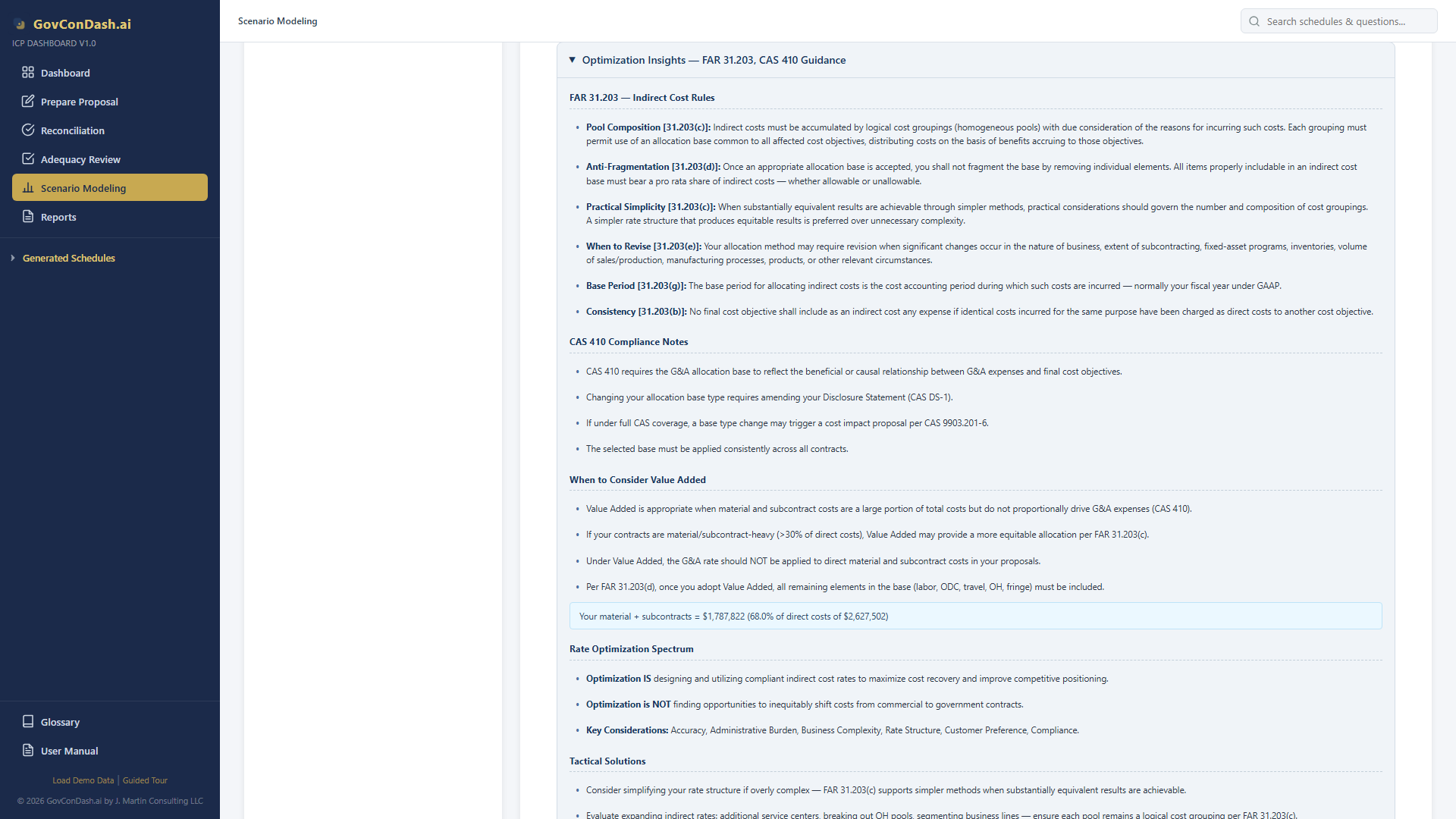
Optimization Insights Panel

At the bottom of the Base Analysis card, an expandable Optimization Insights panel provides comprehensive FAR and CAS guidance organized into six sections: FAR 31.203 indirect cost rules, CAS 410 compliance notes, when to consider Value Added, rate optimization spectrum, tactical solutions, and implications of changes.

Optimization Insights

Expanded Optimization Insights panel with FAR/CAS reference guidance

Chapter 05
Target Rate Calculator
Reverse-solve: given a desired rate, find the pool or base amount needed to achieve it.
Use Case
“We need our overhead rate at 75% for a competitive proposal. What pool amount achieves that with our current base?”

Step-by-Step Workflow

  1. Scroll to the Target Rate Calculator card below the Base Analysis section
  2. Select a pool from the dropdown (OH pools, G&A, or Fringe if applicable)
  3. Enter your target rate as a percentage (e.g., 75 for 75%)
  4. Choose what to solve for: “Pool Amount” (given current base, what pool?) or “Base Amount” (given current pool, what base?)
  5. Click “Calculate”
  6. Review the result showing the required amount and the delta from your current value
  7. Click “Apply to Scenario” to commit the change to your scenario

The Math

Solve for Pool:   Required Pool = Target Rate × Current Base
Solve for Base:   Required Base = Current Pool ÷ Target Rate
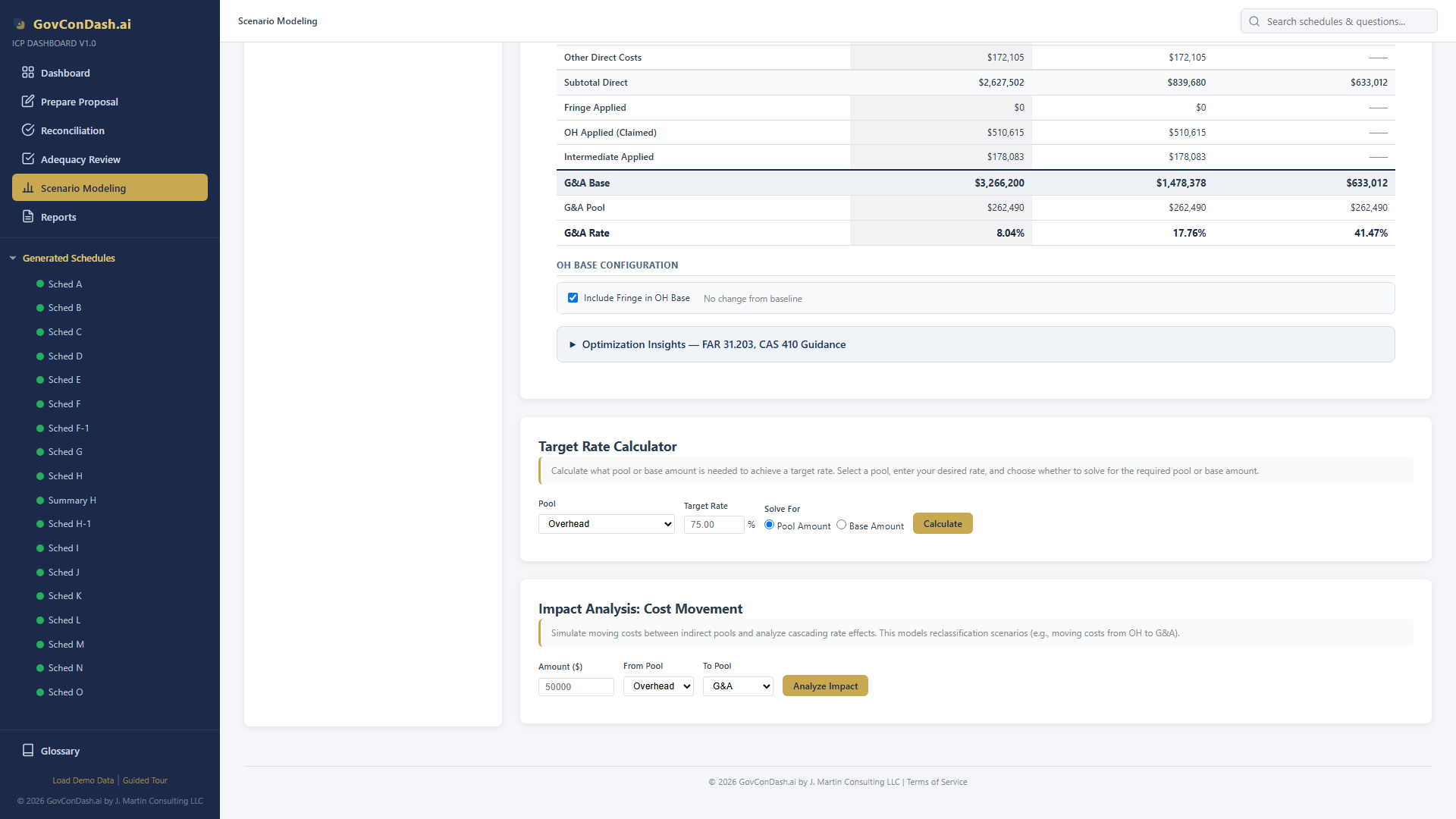
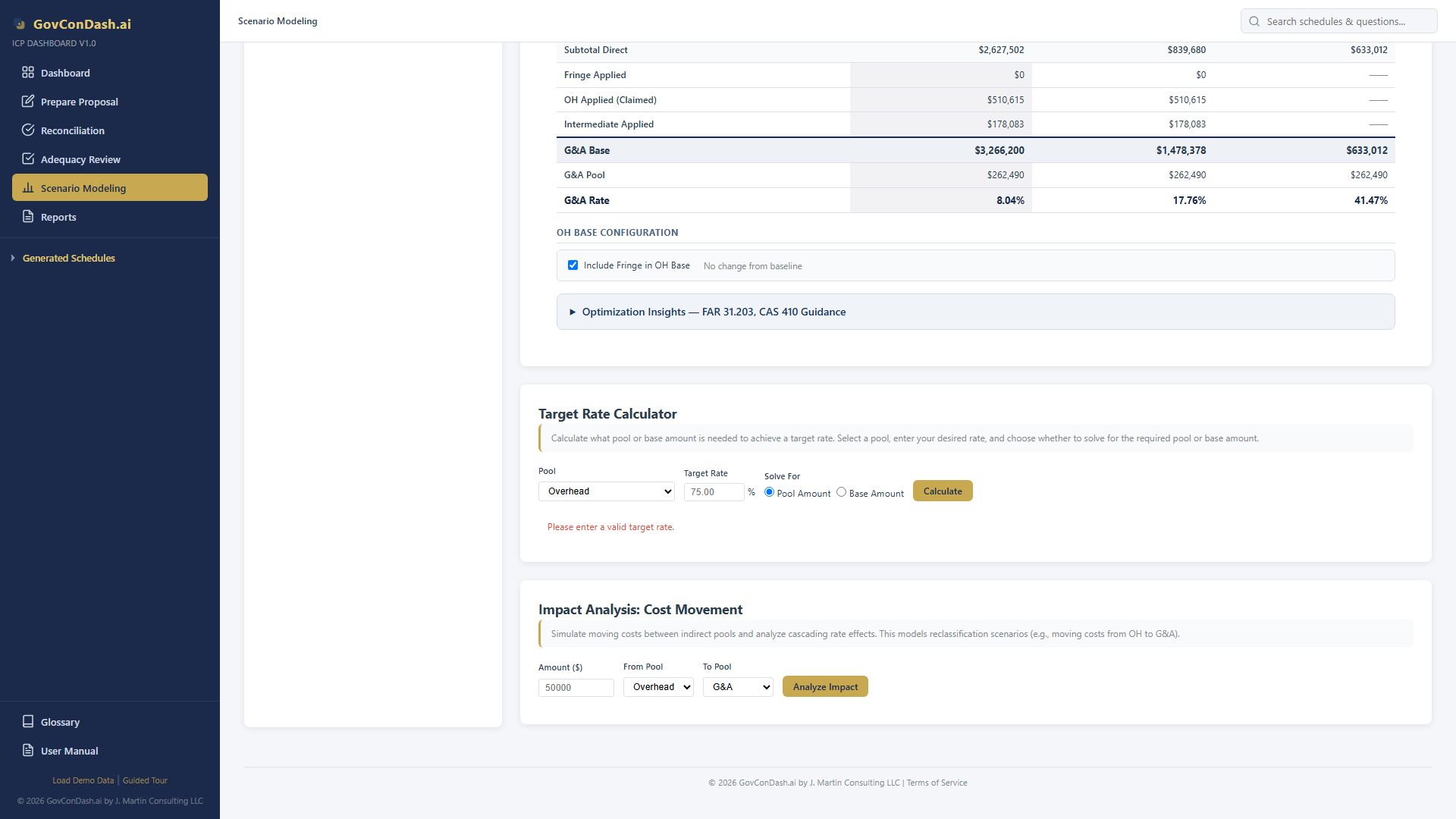
Target Rate Calculator

Target Rate Calculator interface with pool selector, rate input, and solve-for options

Calculator result

Calculator result showing required pool amount to achieve target rate, with delta from current

Tip
After applying a target rate result, your scenario’s rate table updates immediately. You can continue adjusting other pools or run the Target Rate Calculator again for a different pool.
Chapter 06
Impact Analysis — Simulating Cost Reclassifications
Model what happens to all indirect rates when you move costs between pools.
Use Case
“What happens to our rates if we reclassify $50,000 from Overhead to G&A?”

Step-by-Step Workflow

  1. Scroll to the Impact Analysis card (below the Target Rate Calculator)
  2. Enter the dollar amount to reclassify (e.g., $50,000)
  3. Select the source pool (“From”) — where the cost currently resides
  4. Select the destination pool (“To”) — where you want to move it
  5. Click “Analyze Impact”
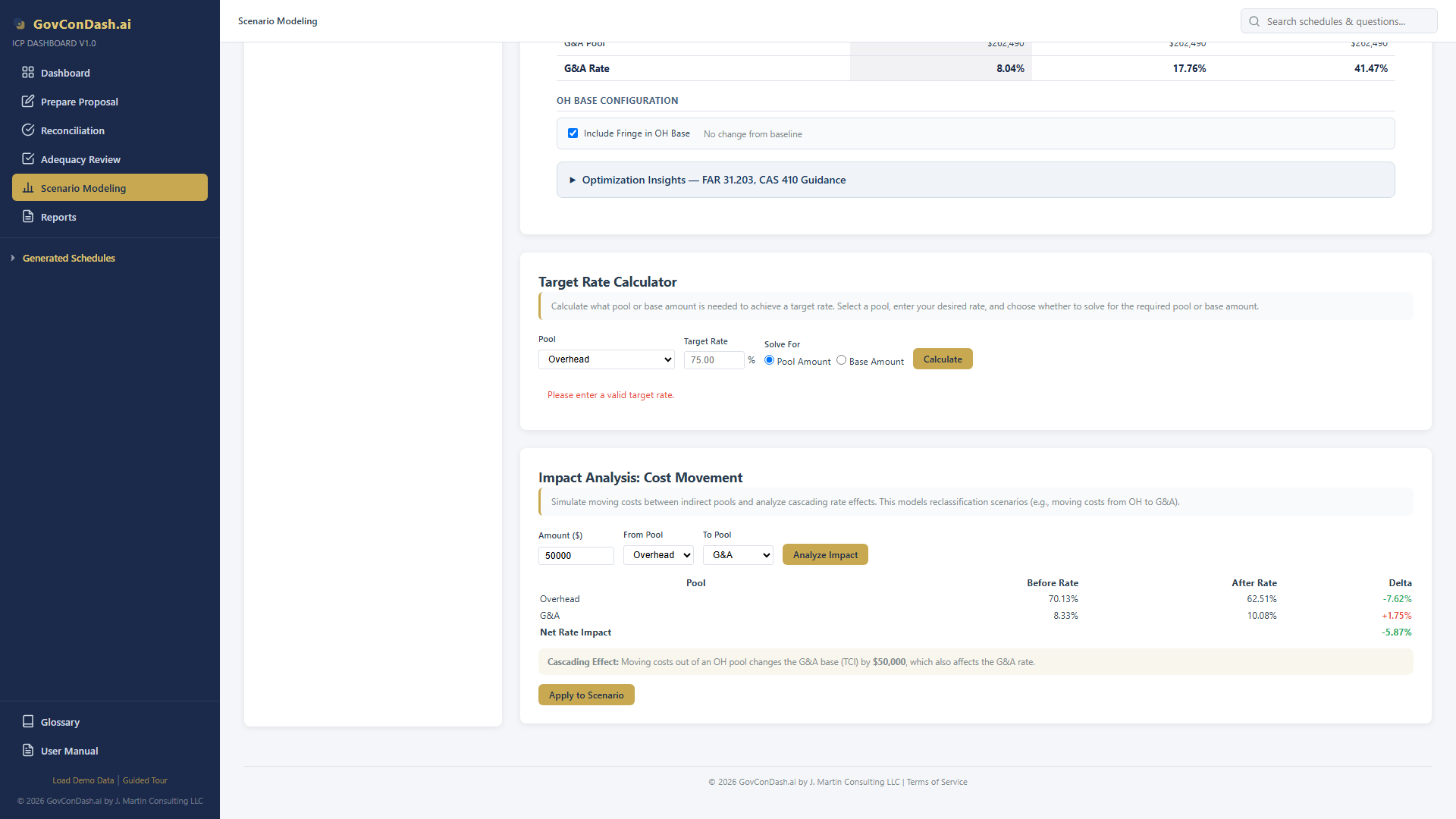
  6. Review the before/after rate comparison table showing every pool’s rate change
  7. Click “Apply to Scenario” to commit the reclassification
Impact Analysis

Impact Analysis interface with amount, source pool, and destination pool inputs

Understanding Cascading G&A Base Effects

This is a critical concept. When your G&A base type is TCI or Value Added, the overhead pool amount is a component of the G&A allocation base. So moving costs into or out of an OH pool changes not just the OH rate, but also the G&A base — and therefore the G&A rate.

The Impact Analysis tool automatically calculates these cascading effects and displays them in the results table. A note indicates the G&A base adjustment amount.

Important: Single Element Exception
If your G&A base type is Single Element (Direct Labor), there are no cascading effects. The DL base is independent of overhead pool sizes, so moving costs between OH and G&A only affects those two pools directly.
Impact analysis result

Impact analysis result showing before/after rates with cascading G&A base effects

CAS 410-50(d) — Cascading Effects
When evaluating alternative allocation base types, always consider cascading effects. A change that improves one rate may worsen another. The Impact Analysis tool shows the full picture across all pools.
Chapter 07
Base Change Justification Analysis
CAS 410-50(d) and FAR 31.203(e) require documented justification when changing your G&A allocation base. This tool provides four statistical methods to support your case.

If you determine that a different G&A base type would be more equitable, you need documented evidence to justify the change to your DCAA auditor and Administrative Contracting Officer (ACO). The Base Change Analysis tab provides a comprehensive analytical framework with four complementary methods.

Access it by clicking the “Base Change Analysis” tab at the top of the Scenario Modeling page.
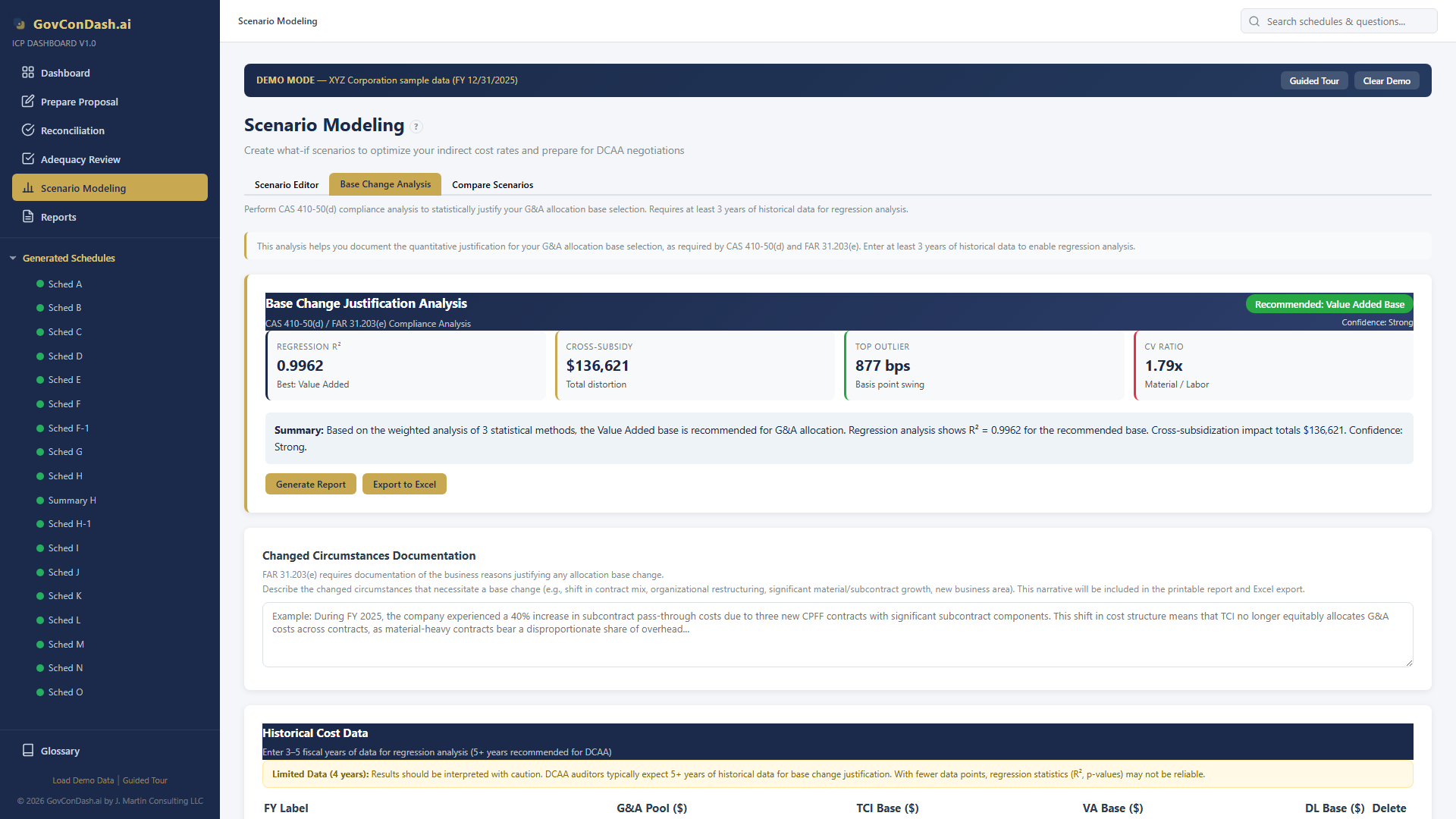
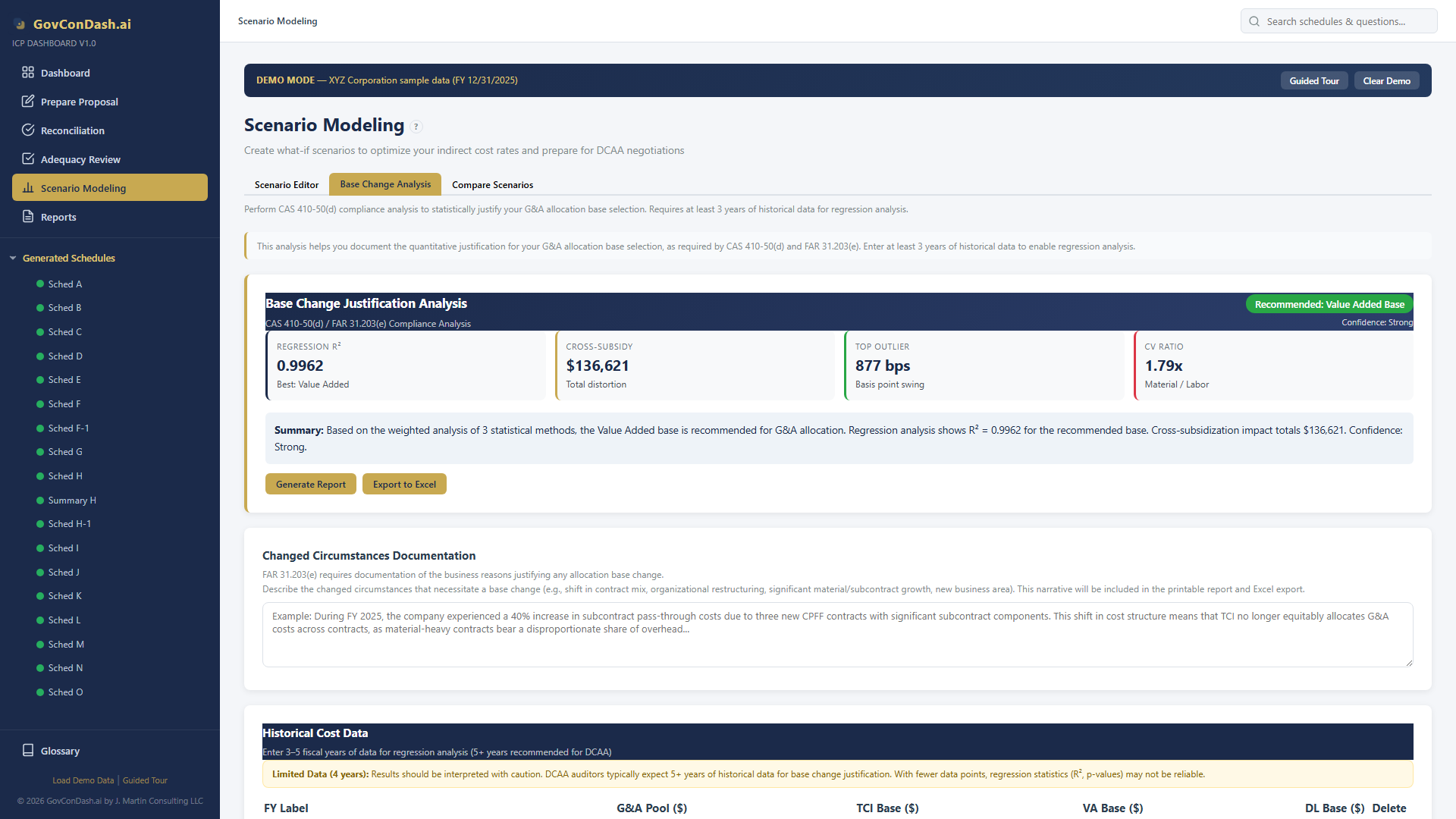
Base Change Analysis

Base Change Analysis tab with summary card, historical data, and analysis panels

7.1 Entering Historical Data

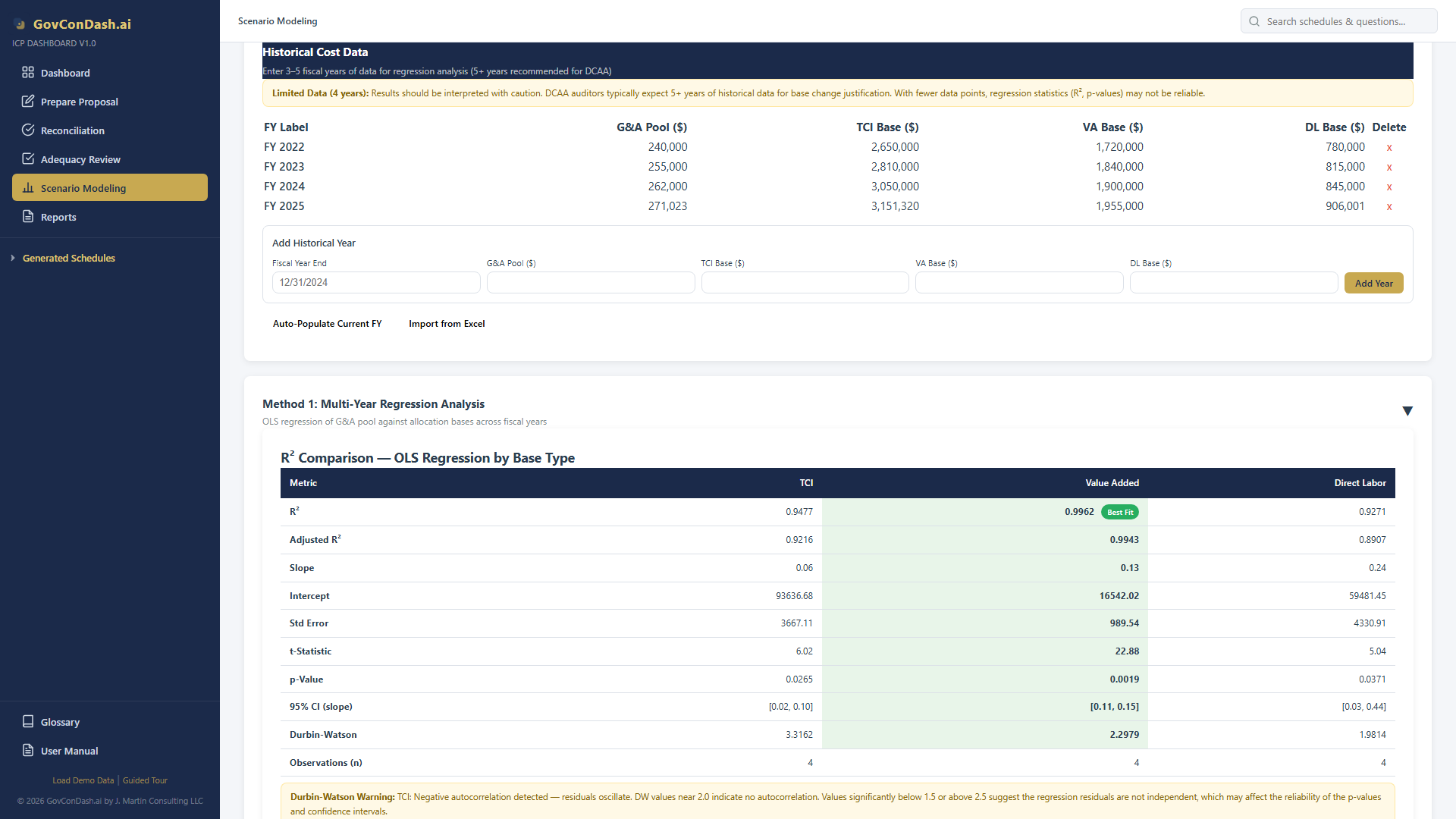
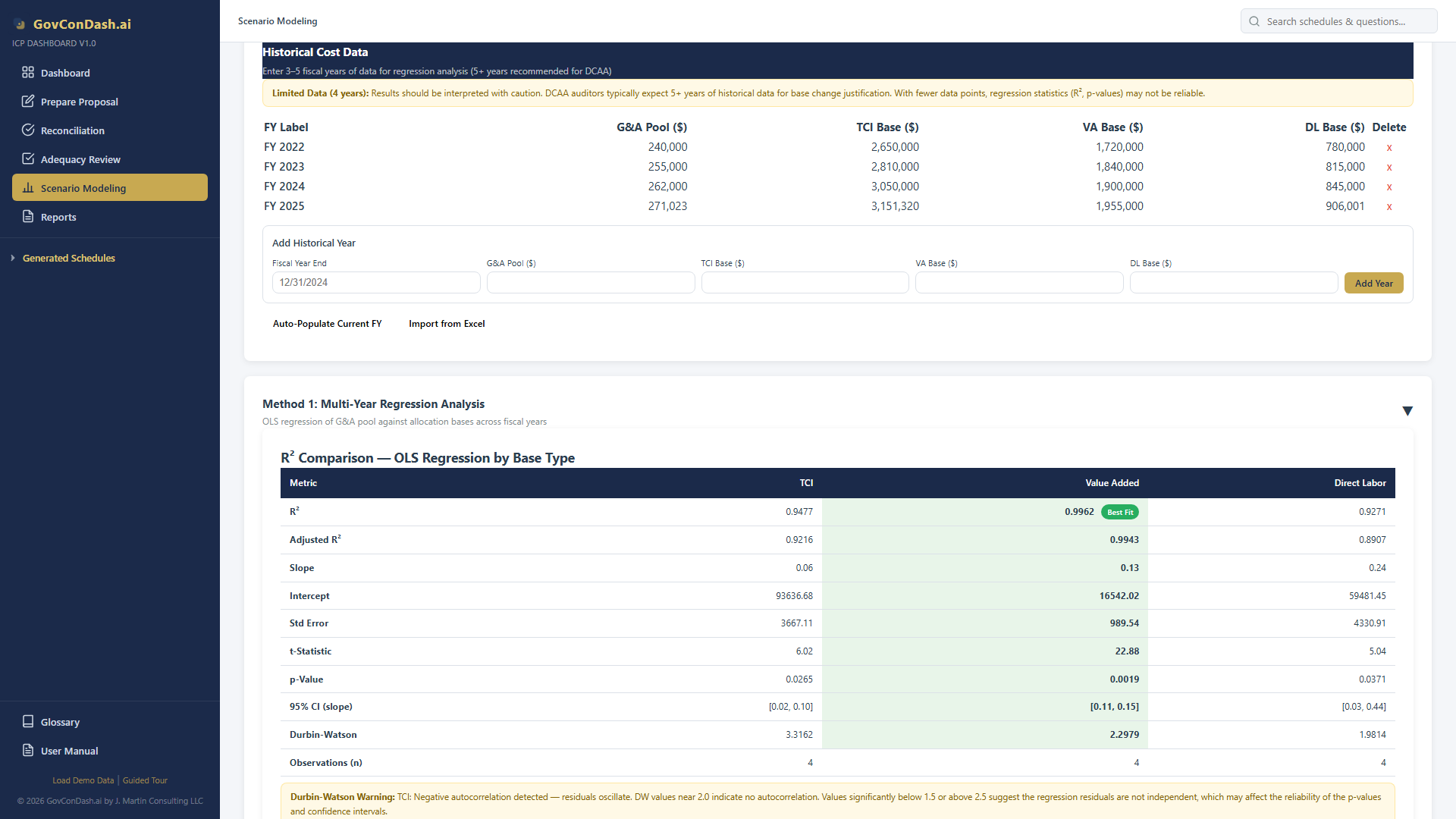
The regression analysis requires multiple years of historical G&A pool and base data. For each fiscal year, enter:

You can also import from prior-year ICE workbooks (upload Excel files and the system parses Schedule B and GL data) or click “Use Current Year Data” to auto-populate from your generated schedules.

Tip: Data Quality
DCAA typically expects 5+ years of historical data for strong statistical evidence. The minimum for regression analysis is 3 years. More data points produce more reliable R² values and narrower confidence intervals.
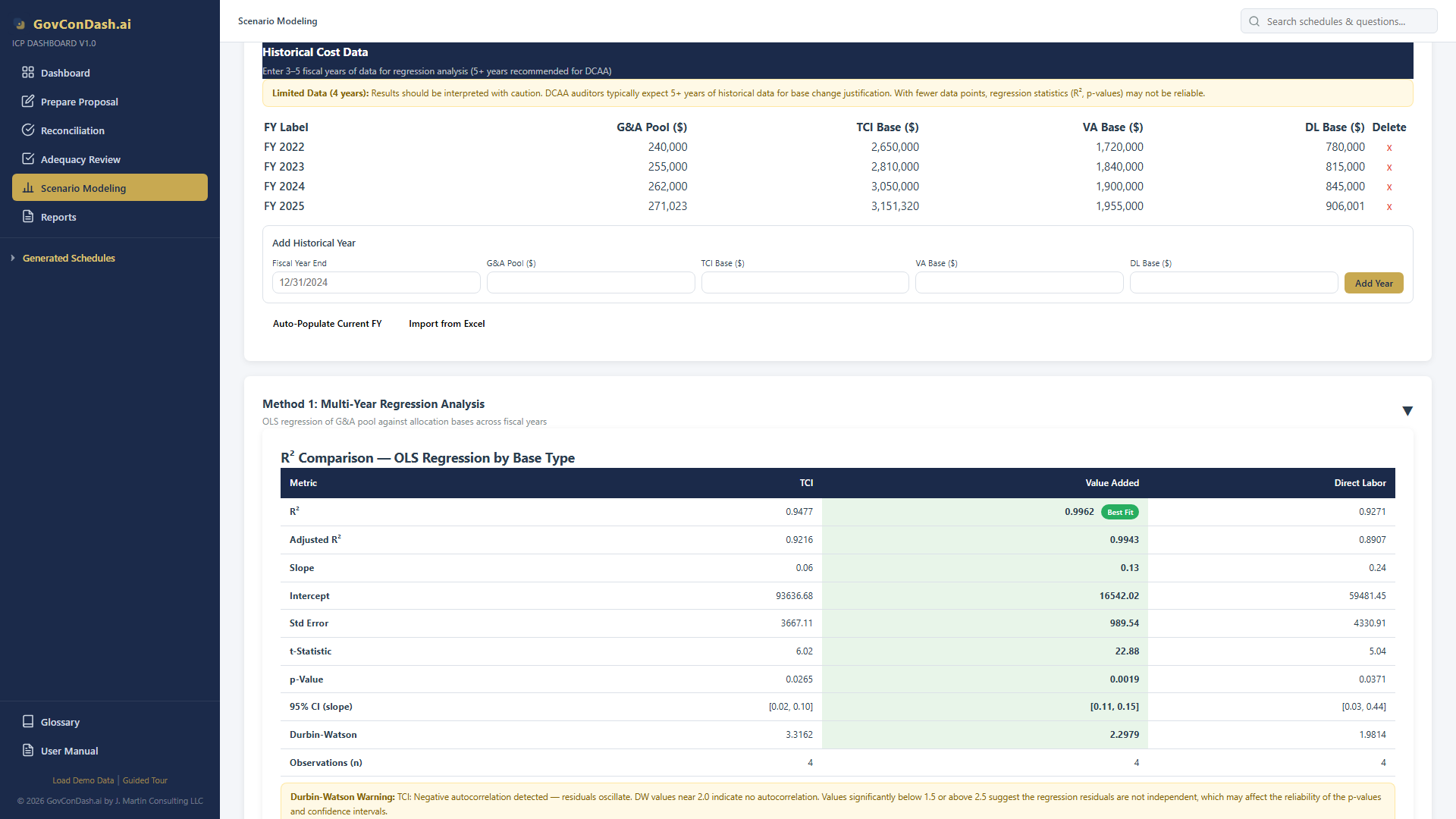
Historical data form

Historical data entry form with fiscal year entries and import options

7.2 Documenting Changed Circumstances

FAR 31.203(e) requires documenting the changed circumstances that warrant a base change. Use the text area to describe business changes — for example, significant growth in subcontract spending, organizational restructuring, new product lines, or major contract type shifts. This narrative is included in exported reports.

7.3 Analysis Summary

At the top of the analysis tab, a summary card shows the overall recommendation with a confidence badge:

Analysis summary

Analysis summary showing recommended base type, confidence level, and key metrics

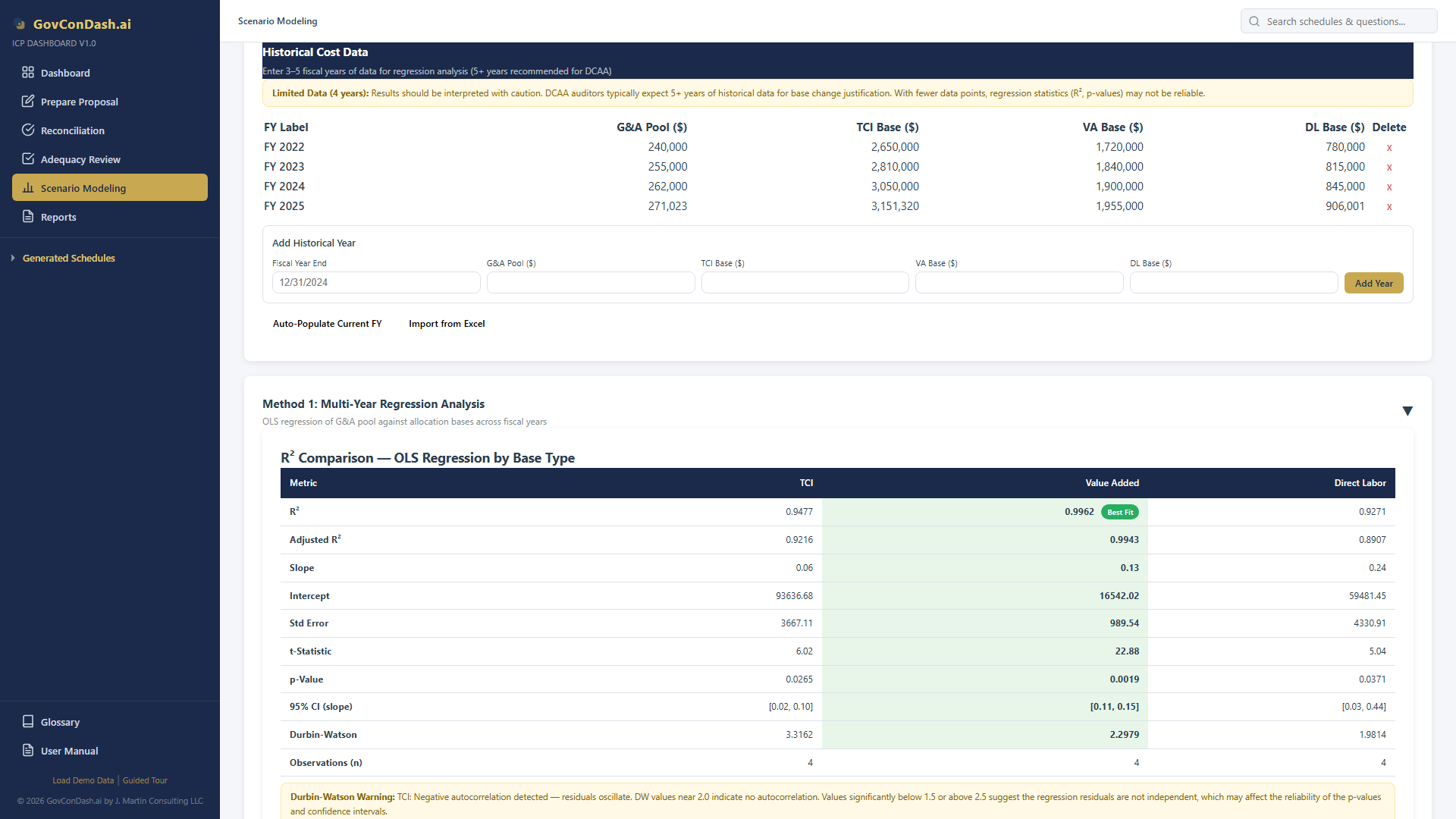
7.4 Method 1 — Multi-Year Regression (OLS)

Ordinary Least Squares regression tests how well each allocation base (TCI, Value Added, Direct Labor) predicts the G&A pool over time. The base with the highest R² is the best statistical predictor.

Scatter plots

Three scatter plots comparing TCI, Value Added, and Direct Labor bases vs. G&A pool with regression lines and R² values

7.5 Method 2 — Comparative Rate Impact Analysis

This method examines how each base type affects G&A allocation at the individual contract level. It computes the G&A rate and allocation amount for every contract under each base type and identifies cross-subsidization — contracts that would pay more or less G&A under different bases.

It also flags the CAS 410-50(d)(3) threshold: if direct labor is less than 15% of TCI, using Single Element as the base is questionable because labor is not a significant portion of total activity.
Rate impact analysis

Rate Impact Analysis showing contract-level G&A allocation under each base type

7.6 Method 3 — Sensitivity & Outlier Analysis

The sensitivity analysis looks at how concentrated material and subcontract costs are across your contract portfolio, helping assess whether pass-through distortion justifies a Value Added base:

Sensitivity analysis

Sensitivity and Outlier Analysis with Pareto concentration and CV comparison

7.7 Reading the Recommendation

The tool aggregates findings from all three methods using a voting system. Each method contributes its recommended base type, and the overall recommendation reflects the consensus:

Important Disclaimer
This tool provides analytical support for your base change justification. It does not replace professional judgment, consultation with your cost accountant, or formal review by your DCAA auditor and ACO. Always consult qualified professionals before submitting a base change request.

Chapter 08
Comparing Scenarios Side-by-Side
Select up to 3 scenarios and compare their rates against your baseline in a unified table.

How to Compare

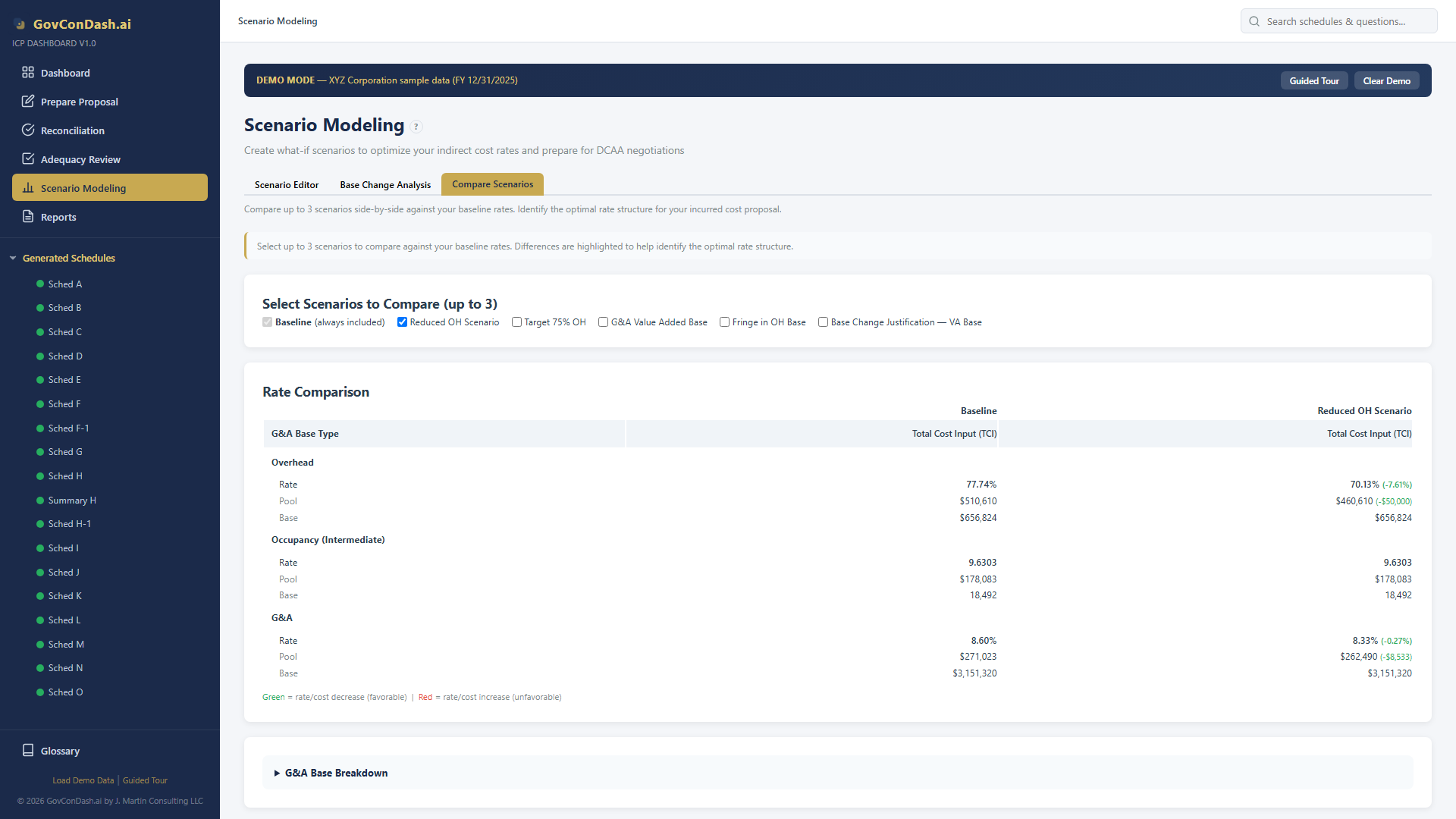
  1. Click the “Compare Scenarios” tab at the top of the Scenario Modeling page
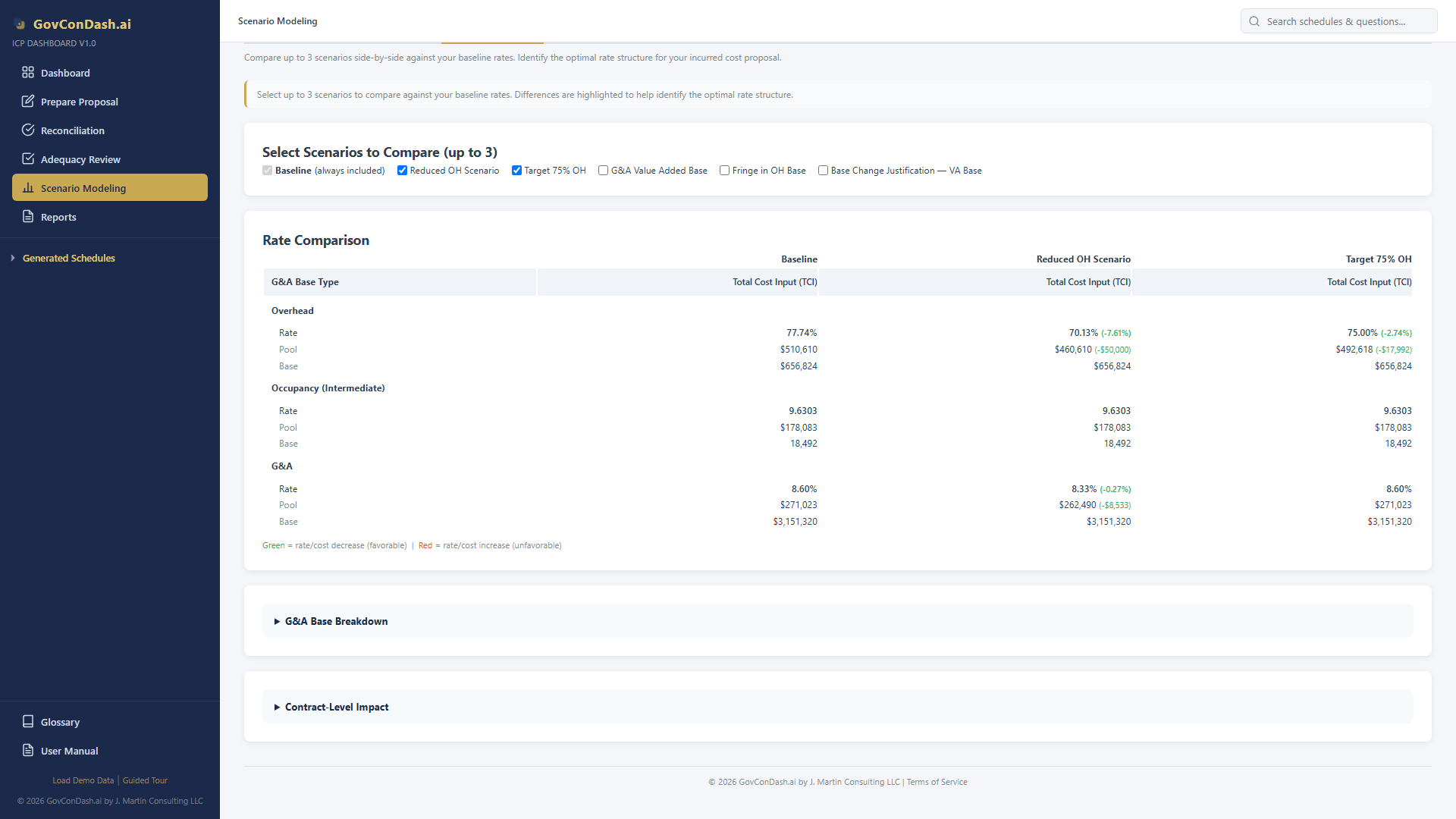
  2. Check the boxes next to the scenarios you want to compare (up to 3). Baseline is always included automatically.
  3. The comparison table updates immediately, showing all selected scenarios side-by-side

Reading the Comparison Table

The table has one column per scenario plus the baseline. For each indirect cost pool, three rows are displayed:

A G&A Base Type row at the top of the G&A section shows each scenario’s selected base type. If any scenario uses a different base type than baseline, a warning note appears: “Different G&A base types — rates reflect different methodologies.”

Scenario comparison

Side-by-side comparison of multiple scenarios against baseline with delta highlighting

G&A Base Breakdown

Expand the collapsible “G&A Base Breakdown” section to see exactly which cost elements (Direct Labor, Material, Subcontracts, Travel, ODC, Fringe, OH) are included in each scenario’s G&A base. Excluded items show an em-dash (—).

Base breakdown

G&A base breakdown showing cost element differences across scenarios

Tip
Create scenarios with different strategies — one that reclassifies costs, one that changes the base type, one that adjusts the OH base configuration — then compare all three to identify the optimal rate structure for your organization.
Chapter 09
Reports & Export
Generate printable analysis reports and export multi-sheet Excel workbooks for DCAA documentation.

Three Export Options

Scenario Report

Full-screen printable HTML report with executive summary, rate overview (baseline vs. adjusted), CAS 410 base analysis, and cost breakdown. Use your browser’s Print function to save as PDF.

📊

Scenario Excel

Multi-sheet .xlsx workbook containing summary, rate comparison, base analysis detail, and formulas. Professional formatting with headers, number formats, and alternating row colors.

📈

Base Change Excel

6-sheet .xlsx workbook: Summary, Regression, Rate Impact, Sensitivity, Cost Impact, and Regulatory References. Comprehensive documentation for CAS 410-50(d) justification.

How to Generate

Scenario report

Printable scenario analysis report with executive summary and rate comparison

Tip: DCAA Documentation
Export both the scenario analysis report and the base change justification workbook when preparing your incurred cost proposal. These documents provide the analytical evidence DCAA expects to see when reviewing rate methodology decisions.
Chapter 10
Tips, Best Practices & FAR/CAS Reference
Practical guidance, common pitfalls, and a quick regulatory reference table.

Best Practices

01

Document First

Always document changed circumstances before proposing a base type change. FAR 31.203(e) requires a clear rationale.

02

Historical Depth

Use 5+ years of historical data for your regression analysis. More data points produce stronger statistical evidence.

03

Compare All Three

Always evaluate TCI, Value Added, and Single Element before committing. One may be clearly superior for your cost profile.

04

Watch Cascading Effects

When moving costs between OH and G&A, remember that TCI and VA bases cascade. Use Impact Analysis to see the full picture.

05

Read Optimization Insights

The FAR/CAS guidance in the Base Analysis card covers anti-fragmentation, consistency, and revision triggers. Review before deciding.

06

Export Everything

Export reports and Excel workbooks for your DCAA submission file. Documented analysis demonstrates due diligence.

Common Pitfalls

Pitfall 1: Missing DS-1 Amendment
Changing your G&A base type without filing a Disclosure Statement (DS-1) amendment constitutes CAS non-compliance. Always work with your contracting officer before implementing a base change.
Pitfall 2: Anti-Fragmentation Violation
FAR 31.203(d) prohibits fragmenting the base to eliminate costs from bearing their fair share of G&A. If you switch to Value Added, all remaining elements (labor, travel, ODC, fringe, OH) must stay in the base.
Pitfall 3: Insignificant Element Base
Using Single Element (Direct Labor) when labor is less than 15% of TCI is difficult to justify under CAS 410-50(d)(3). The element must be a “significant portion” of total cost.
Pitfall 4: Ignoring Cascading Effects
Moving $100K from OH to G&A reduces the OH rate but also changes the TCI/VA base. The net G&A rate impact may be smaller (or larger) than expected. Always use Impact Analysis to see the full effect.

FAR/CAS Quick Reference

Reference Topic Key Requirement
FAR 31.203(b) Consistency Once an allocation method is established, follow it consistently across cost accounting periods
FAR 31.203(c) Beneficial/Causal Allocation base must reflect a beneficial or causal relationship to the costs being allocated
FAR 31.203(d) Anti-Fragmentation Cannot fragment the base to eliminate costs from bearing a fair share of indirect expenses
FAR 31.203(e) Revision Triggers Changed circumstances (organizational, contractual, cost profile) warrant reassessment of allocation methods
FAR 31.203(g) Base Period Use the contractor’s fiscal year as the cost accounting period for indirect cost allocation
CAS 410-50(d)(1) TCI Base Broadest measure of total activity is preferred; represents total contractor activity for the period
CAS 410-50(d)(2) Distortion Test Elements may be excluded only if their inclusion would distort allocation to final cost objectives
CAS 410-50(d)(3) Insignificant Element Single cost element base requires the element to be a significant portion of total cost
CAS 418 Direct/Indirect Governs allocation of direct and indirect costs to final cost objectives (contracts)
FAR 42.703 Administration CO and auditor responsibilities for administering indirect cost rates and establishing final rates